Change Cursor Activity Bar to Vertical (Like VS Code)
A quick guide to change workbench.activityBar.orientation from horizontal (top) to vertical (side) in Cursor editor.
Cursor’s activity bar sits at the top by default, while VS Code puts it on the side. If you prefer the vertical layout like VS Code, you can switch it in a few steps.
Default: horizontal (top)
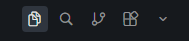
Change via UI Settings ⚙️
- Open Settings with
Ctrl + ,(orCmd + ,on macOS) - In the search bar, type:
activity bar orientation - Find Workbench: Activity Bar: Orientation
- Change from
toptovertical - The change applies immediately
Change via settings.json 📝
For direct control, edit settings.json:
- Press
Ctrl + Shift + P(orCmd + Shift + Pon macOS) - Run: Preferences: Open User Settings (JSON)
- Add or update:
{
  "workbench.activityBar.orientation": "vertical"
}
Save the file and the activity bar moves to the left.
Result: vertical (side)

Available Options 🎛️
workbench.activityBar.orientation supports two values:
"top"— Activity bar on top (Cursor default)"vertical"— Activity bar on the left (like VS Code)
Extra Tips 🔧
To tweak activity bar width or visibility:
{
  "workbench.activityBar.orientation": "vertical",
  "workbench.activityBar.location": "side"
}
To hide the activity bar:
{
  "workbench.activityBar.visible": false
}
💡 Note: With
vertical, Cursor’s layout matches VS Code more closely, which helps if you often switch between the two.
Done. Your activity bar is now on the side like VS Code, and the change takes effect without restarting the editor. ✨